
Photographs are often important mementos, and in this technological age, compressing these images is a great way to save memory space and have your photos in various formats. PDF is usually one of the most popular formats for this, but do you know how to convert a photo to PDF?
There are many ways to convert photos to PDF, but one of the most practical and simple is to do it through websites, without needing software or downloading apps to your device. Discover below how to transform photos into PDFs on your phone using 5 different websites!
ILovePDF
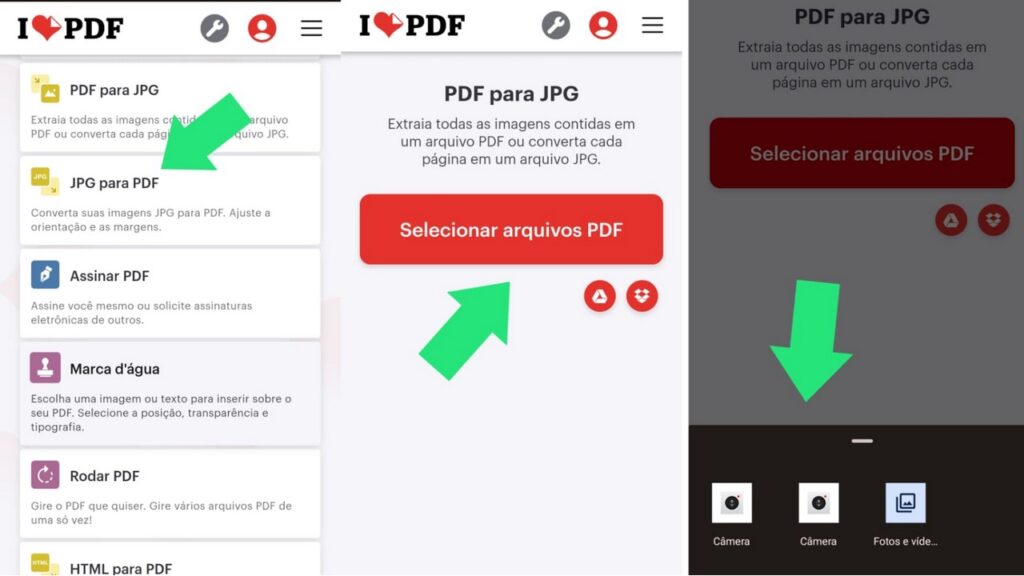
iLovePDF is our top recommendation for those who want to learn how to convert photos to PDF. This website is quite intuitive, and its simple interface makes it easy even for those without much experience in the subject to perform the operations.
You can send photos that are on your computer, cell phone, Google Drive, or Dropbox; just follow these steps:
- Step 1: Search for the website in your browser;
- Step 2: With the website's homepage open, select what you want to do with your file. In this case, select the "JPG to PDF" option, as shown in the image above;
- Step 3: Select the "select PDF files" button;
- Step 4: Select where you want to upload your file from and wait for it to upload;
- Step 5: Select the "convert file" button and then "download" (if you want to download the file as a PDF).
iLovePDF has apps for Android and iOS (iPhone/iPad). These apps allow you to manage PDF documents on both smartphones and tablets.

SmallPDF
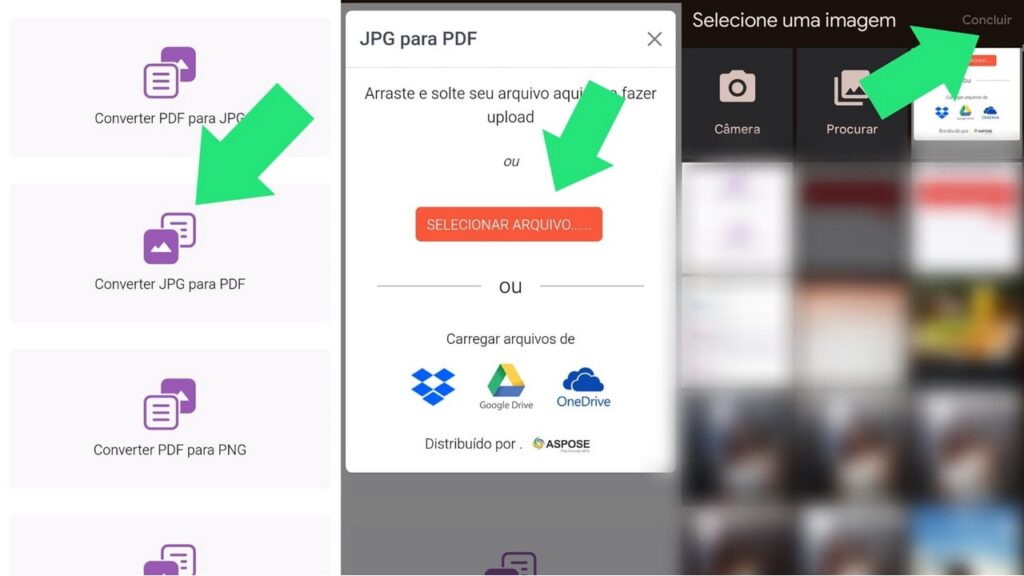
The SmallPDF website is another one on our list for learning how to convert photos to PDF. It also allows users to convert images to PDF format from their gallery, PC, or any cloud service (such as Dropbox, Google Drive, and OneDrive).
Like the previous site, iLovePDF offers very practical tools that can perform numerous operations involving the PDF format. You can transform a photo into a PDF in just a few seconds, simply by following these steps:
- Step 1: Search for the website in your browser;
- Step 2: On the website's homepage, select the "convert JPG to PDF" option;
- Step 3: Press the "select file" button;
- Step 4: Select your file, press "finish" and wait for it to load;
- Step 5: Select the "convert file" button and then "download" (if you want to download the file as a PDF).
Smallpdf has apps for both Android and iOS. These apps offer access to all Smallpdf tools, allowing you to manage your PDF documents on mobile devices.
PDF Candy
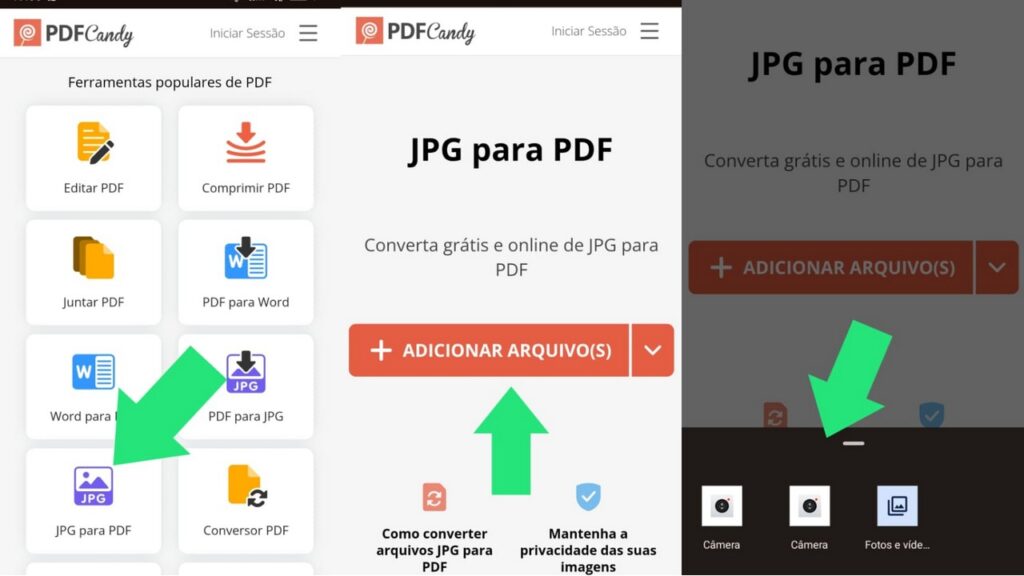
If you're looking for a practical way to handle numerous photos, but don't know how to convert them to PDF, PDF Candy can be very useful for you! This website allows users to combine multiple photos into a single PDF file.
Its simple interface makes it easy to use, and you can perform various other processes on the site, from merging PDFs, converting PDFs to Word, editing PDFs, compressing PDFs, and more! To transform a photo into a PDF, simply follow the same steps:
- Step 1: Search for the website in your browser;
- Step 2: On the website's homepage, select the "JPG to PDF" option;
- Step 3: Press the "add files" button;
- Step 4: Select your file, press "finish" and wait for it to load;
- Step 5: Select the "convert file" button and then "download" (if you want to download the file as a PDF).
PDF Candy offers apps for Android and iOS, and you can find them on the Google Play Store and the Apple App Store, respectively.
PDF.io
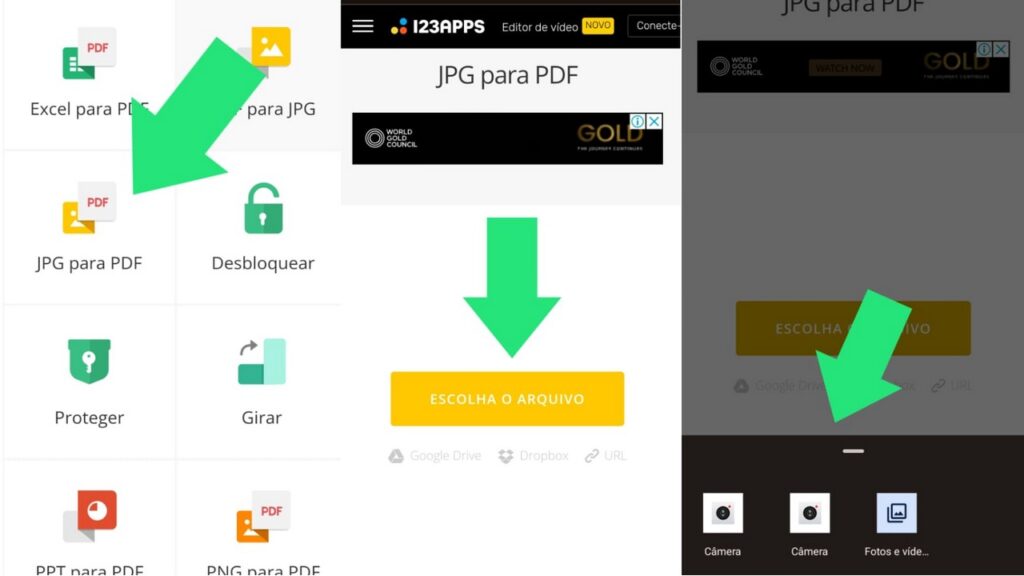
The website PDF.io has a unique feature in how to convert photos to PDF. This is because, in addition to traditional file transfer methods like computer, mobile phone, or cloud storage, it also allows users to convert images to PDF format using links.
Therefore, you can convert virtually any image to PDF by following these steps:
- Step 1: Search for the website in your browser;
- Step 2: On the website's homepage, select the "JPG to PDF" option;
- Step 3: Press the "choose file" button;
- Step 4: Select your file, press "finish" and wait for it to load;
- Step 5: Select the "convert file" button and then "download" (if you want to download the file as a PDF).
PDF.io has apps for Android and iOS. The app allows you to manage PDF documents and perform tasks such as editing, converting, and scanning.
jpg2pdf
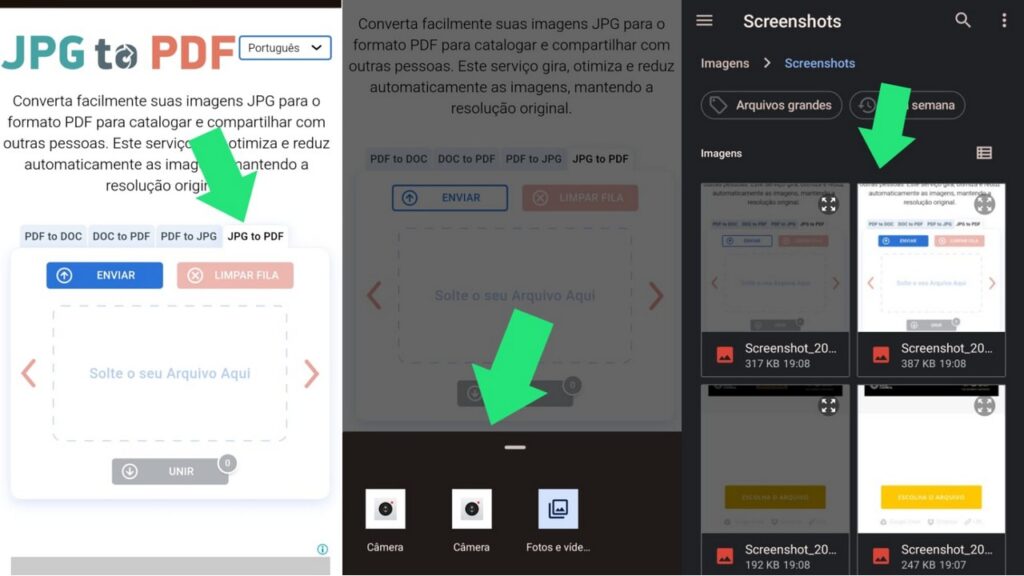
JPG2PDF is the ideal website for those who want to upload more than 15 photos but don't know how to convert them to PDF all at once. It allows users to upload up to 20 photos simultaneously. This way you can generate a PDF file with 20 photos, but it's not compatible with online storage.

- Step 1: Search for the website in your browser;
- Step 2: On the website's homepage, choose the "JPG to PDF" option, select "upload," and import the images;
- Step 3: After uploading the files, choose the 'merge' option to create a single document with all of them combined. If you prefer, you can click 'download' to save each image as a separate file.
- Step 4: Select your file, press "finish" and wait for it to load;
- Step 5: Select the "convert file" button and then "download" (if you want to download the file as a PDF).
JPG2PDF offers apps for Android and iOS, and you can find them on the Google Play Store and the Apple App Store, respectively.
Conclusion
These are the most practical websites for those who want to learn how to convert photos to PDF quickly and easily. Each one has its own simple interface that helps users not only convert photos to PDF, but also other files to PDF.
Do you enjoy this kind of content about technology and tips on websites that make your life easier? Then be sure to check out: 9 apps for reading books for free e Discover 10 useful apps you should download for your phone.
Frequently Asked Questions
What image formats can be converted to PDF?
You can convert JPEG, PNG, BMP, GIF, and TIFF files into PDF documents using numerous tools.
How do I convert a photo to PDF on a Mac?
To convert a photo to PDF on a Mac, the user will need to use the "Preview" application, following these steps:
– Open the image: Open the photo you want to convert to PDF in the Preview application.
– Export: In the top menu, go to “File > Export”.
– Format: In the “Format” menu, select “PDF”.
– Save: click on “Save” to create the PDF.