TalkBack is a native feature on Android phones, developed specifically to assist visually impaired people. With voice support, it describes actions, reads texts, and helps navigate the device in an accessible and practical way. However, for those without visual limitations, this function can hinder usability, making the experience slower and more confusing.
If you accidentally activated TalkBack or simply want to deactivate it, know that this is entirely possible and can be done in a few steps. In this article, we'll show you how to deactivate TalkBack on Android phones with a simple, straightforward guide accessible to any user level. Keep reading and discover the quickest way to regain full control of your device!
What is TalkBack?
TalkBack is an accessibility tool natively present in Android systems, designed to facilitate navigation for visually impaired people. It offers text-to-speech of on-screen elements and allows control of the phone through specific gestures. This feature makes it possible to use the device without the user needing to see the screen.
Officially introduced with Android 4.0 (Ice Cream Sandwich), TalkBack is available on virtually all smartphones running Google's operating system. Brands such as Samsung, Motorola, Xiaomi, and others support the feature, which can be easily activated in accessibility settings. Even so, many users end up activating the feature by mistake.
For those who don't need the feature, understanding how to disable TalkBack on Android phones is essential, as the feature changes the way you interact with the device. When active, simple touches don't work the same way, which can cause confusion. Fortunately, with a few simple instructions, it's possible to disable it quickly and resume normal use of the device.
How do I disable TalkBack?
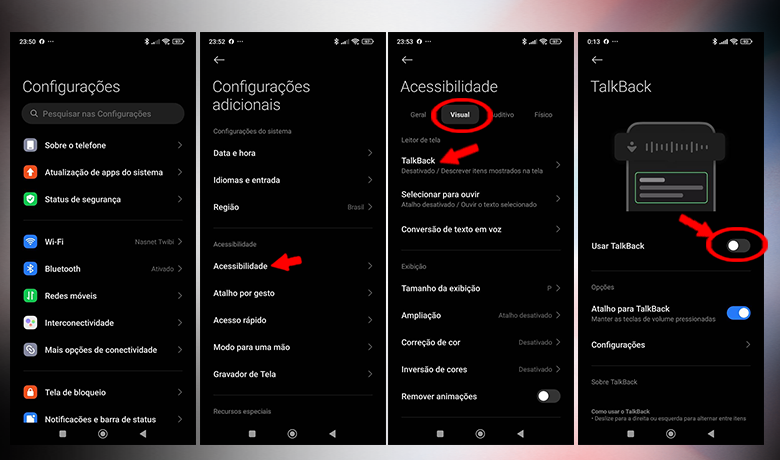
For those who need to disable TalkBack on mobile phones. Android, The first step is to access the device's settings menu. Then, go to the "Accessibility" option, where features focused on usability and inclusion are grouped. There, you will be able to see the "TalkBack" item among the available options.
After opening the “TalkBack” tab, simply tap the toggle switch to disable the feature. It's also important to disable the TalkBack shortcut, which is usually activated by pressing the volume buttons. This will prevent the feature from being accidentally turned back on in the future.
If you're looking for how to disable TalkBack on Samsung, the process is practically the same. In settings, go to "Accessibility" and then to "Visibility Enhancements" or directly to "TalkBack," depending on the system version. Turn off the feature and confirm the action to return to normal use.
Another practical way to disable TalkBack is to press and hold the volume up and volume down buttons for a few seconds. This shortcut works even when navigation is compromised. Therefore, learning how to disable TalkBack on Android phones gives you more control over your daily use of the device.
How do I activate TalkBack?
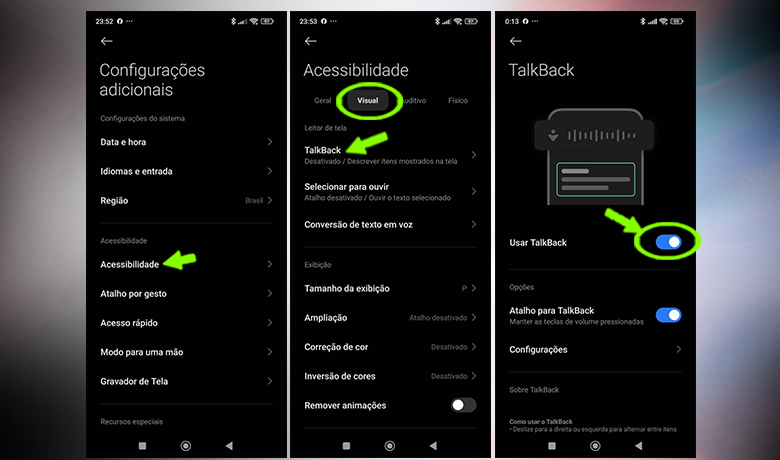
If at any point you decide to reactivate the feature, the process is simple and quick. Just access your device's "Settings" and tap on the "Accessibility" option. Within this section, select the "TalkBack" category to view the available options. With one tap, the feature will be reactivated and will start working immediately.
Although many users choose to disable TalkBack on Android phones, it can be extremely useful for visually impaired people. Voice support allows them to navigate the phone without looking at the screen. By reactivating the feature, it's possible to ensure greater autonomy and accessibility in using the device.
In addition to activating TalkBack, you can also adjust various settings to adapt it to your preferences. The feature allows you to customize navigation gestures, set speech speed, and even change the tone of voice used in readings. These options make the experience much more comfortable and functional.
Another interesting feature is the braille keyboard, which can be activated along with TalkBack. This further expands accessibility for those with low or no vision. Therefore, even if you have previously chosen to disable TalkBack on Android phones, knowing how to reactivate and customize it is essential to take advantage of all the benefits it offers.
Conclusion
Now that you know how to disable TalkBack on Android phones, you've seen that the process is simple, whether turning the feature off or re-enabling it when needed. TalkBack is a valuable accessibility tool, but it may be unnecessary for those who don't require this support. We also explained how to customize and configure this function in a practical way. With this information, you have more control over your device's features.
Did you like the tips? Tell us in the comments if you've ever had trouble disabling TalkBack on Android phones or if you know someone who uses this feature daily. Also, check out... Our article on best practices for freeing up space on your phone. and keep your device always responsive. You can never have too much information when it comes to optimizing your Android usage!
Questions that might interest you
Does TalkBack interfere with other apps?
TalkBack can impact the functioning of other applications, as it modifies the way the user navigates the device, replacing conventional touches with gestures and voice-return commands.
Is there a way to automatically activate TalkBack when needed?
Yes, it's possible to activate TalkBack whenever you need it through a customizable shortcut in your phone's settings. Once enabled, simply press the volume buttons simultaneously to turn the feature on or off. You can also activate TalkBack using Google Assistant or by manually accessing the device's accessibility menu.
What is the procedure for disabling TalkBack on Xiaomi devices?
Since Xiaomi uses Android as its operating system, simply follow the steps in this tutorial.